Why Your Android Device Slows Down (And What You Can Do)
Your Android phone was lightning-fast when you bought it. Now? Apps lag, videos stutter, and opening Chrome feels like waiting for a download from 2010. You’re not alone—and it’s not always a hardware problem.
Over time, Android devices accumulate cache files, background processes, and app fragments that eat RAM and storage. The good news: you don’t need to buy a new phone. Strategic optimization tools and habits can restore most of that lost speed without wiping your device.
Clean Out Your Storage First
Before installing anything, check what’s actually taking up space. Go to Settings > Storage and see the breakdown. Apps, photos, and cached data are usually the culprits.
For a hands-on cleanup, Files by Google (Google’s official file manager) scans your phone and flags duplicate photos, old downloads, and bloated app caches. It’s free and won’t delete anything without your approval. Unlike generic cleaning apps that promise miracles, Files by Google is transparent about what it removes.
Delete unused apps ruthlessly. Each one is a background process waiting to happen. If an app hasn’t been opened in 3 months, it’s taking up real estate for no reason.
RAM Management: The Right Way
Android handles RAM intelligently on its own—aggressively killing background apps when it needs space. But if you’re running dozens of apps simultaneously, things break down.
- Check what’s running: Go to Settings > Apps and review which apps have permission to run in the background. Disable background activity for apps you don’t need to notify you constantly (news apps, games, social media).
- Turn off location services for apps that don’t genuinely need it. GPS drains battery and keeps processes alive.
- Skip RAM cleaner apps: Most « RAM boosters » are marketing nonsense. Android manages memory better than third-party tools. The exception is CCleaner, which is actually useful for cache cleanup, but use it sparingly—not daily.
Reduce Visual Bloat
Android’s animations and visual effects look smooth but cost performance. If your device is older or mid-range, disabling them helps noticeably.
Enable Developer Options: go to Settings > About Phone and tap Build Number seven times. Then navigate to Developer Options and:
- Set Animation scale to 0.5x (or off entirely)
- Lower Transition animation scale similarly
- Disable Show surface updates and GPU rendering options you don’t need
Apps open faster. Scrolling feels snappier. It’s not flashy, but it works.
Use Lightweight App Alternatives
Modern Android apps are bloated. Facebook, Instagram, and Twitter use massive amounts of RAM even when idle.
Consider switching to lighter versions:
- Facebook Lite and Instagram Lite offer core functionality in a fraction of the size.
- Twitter Lite (now called X Lite) is dramatically faster than the full app.
- Gmail‘s official app is lighter than third-party clients if you strip unnecessary features.
- For general browsing, Chrome Lite or Firefox Focus use less memory than the standard browsers.
You’ll lose some features (widgets, offline sync), but the speed gain justifies it for most users.
Battery Optimization Settings (They Speed Things Up Too)
Battery Saver mode limits what apps can do in the background. While designed for battery life, it also reduces system load.
Go to Settings > Battery and enable Battery Saver or Adaptive Battery (name varies by manufacturer). Android learns which apps you actually use and throttles the rest. It’s like putting your phone on a productivity diet.
Update Aggressively
Android updates often include performance improvements, not just security patches. Enable automatic updates: Settings > About Phone > System Update > Advanced and toggle Auto-download updates on.
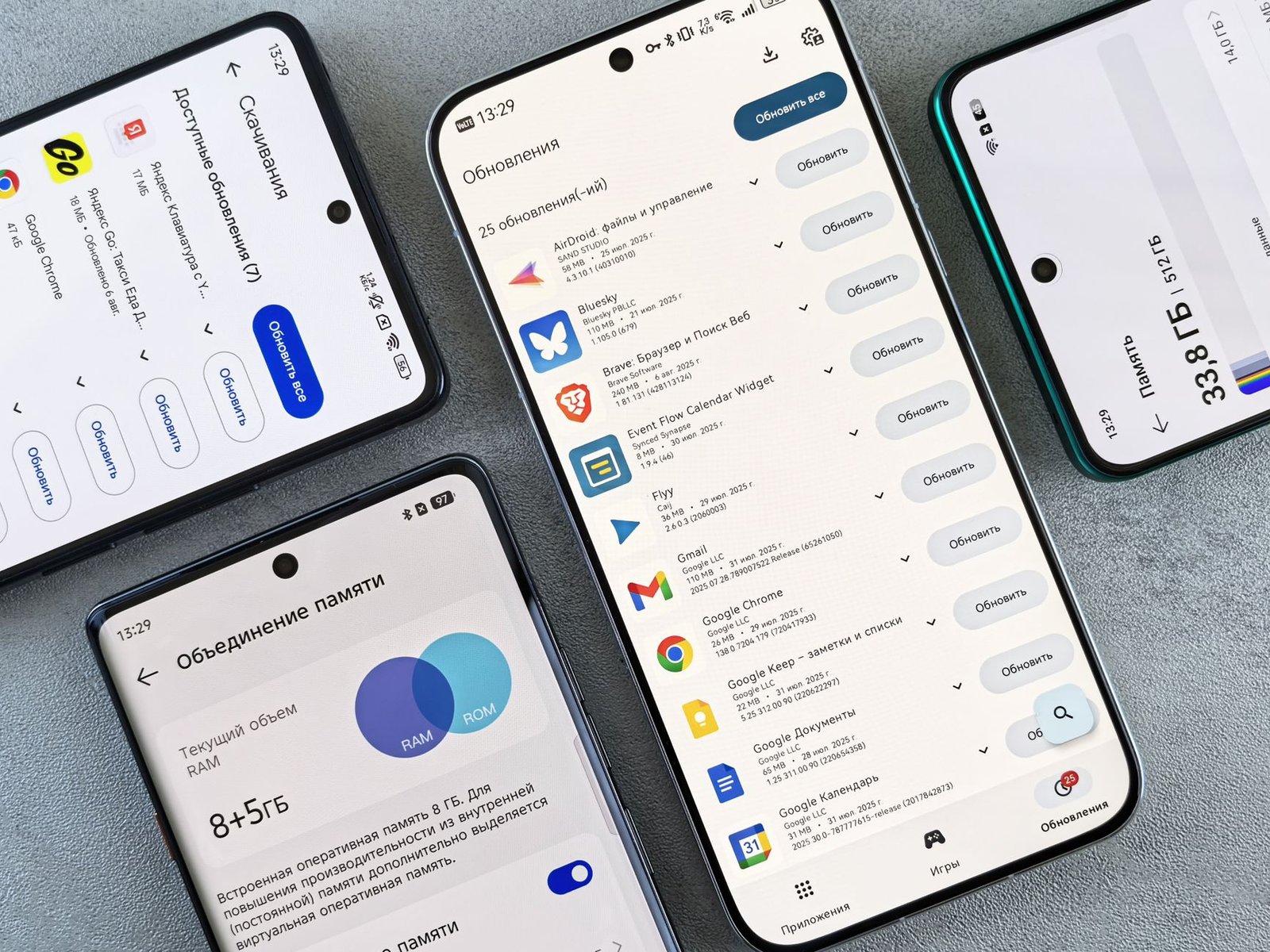
App updates matter too. Outdated apps can leak memory or run inefficient code. Check Google Play Store > My Apps & Games > Updates and install everything pending.
One Tool Worth Keeping: CCleaner (Used Correctly)
If you want a single optimization app, CCleaner is the least-annoying option. It clears cache, junk files, and leftover app data without false promises.
Use it monthly, not daily. Set a reminder. Then uninstall it. Leaving cleanup apps permanently installed defeats the purpose—they run background tasks themselves.
Your Action Plan This Week
Don’t overhaul everything at once. Pick three steps:
- Open Files by Google and delete 2GB of junk.
- Disable background activity for 5 apps you don’t need notifications from.
- Lower animation scales in Developer Options.
Restart your phone after changes. The difference will be immediate. Speed optimization isn’t a one-time fix—it’s a habit. Revisit your app list every two months, keep storage under 80% full, and your Android device will stay responsive for years.
Laisser un commentaire