Catégorie : Uncategorized

  • Speed Up Android: Best Optimization Tools & Tips

    Speed Up Android: Best Optimization Tools & Tips

    Why Your Android Device Slows Down (And What You Can Do)

    Your Android phone was lightning-fast when you bought it. Now? Apps lag, videos stutter, and opening Chrome feels like waiting for a download from 2010. You’re not alone—and it’s not always a hardware problem.

    Over time, Android devices accumulate cache files, background processes, and app fragments that eat RAM and storage. The good news: you don’t need to buy a new phone. Strategic optimization tools and habits can restore most of that lost speed without wiping your device.

    Clean Out Your Storage First

    Before installing anything, check what’s actually taking up space. Go to Settings > Storage and see the breakdown. Apps, photos, and cached data are usually the culprits.

    For a hands-on cleanup, Files by Google (Google’s official file manager) scans your phone and flags duplicate photos, old downloads, and bloated app caches. It’s free and won’t delete anything without your approval. Unlike generic cleaning apps that promise miracles, Files by Google is transparent about what it removes.

    Delete unused apps ruthlessly. Each one is a background process waiting to happen. If an app hasn’t been opened in 3 months, it’s taking up real estate for no reason.

    RAM Management: The Right Way

    Android handles RAM intelligently on its own—aggressively killing background apps when it needs space. But if you’re running dozens of apps simultaneously, things break down.

    • Check what’s running: Go to Settings > Apps and review which apps have permission to run in the background. Disable background activity for apps you don’t need to notify you constantly (news apps, games, social media).
    • Turn off location services for apps that don’t genuinely need it. GPS drains battery and keeps processes alive.
    • Skip RAM cleaner apps: Most « RAM boosters » are marketing nonsense. Android manages memory better than third-party tools. The exception is CCleaner, which is actually useful for cache cleanup, but use it sparingly—not daily.

    Reduce Visual Bloat

    Android’s animations and visual effects look smooth but cost performance. If your device is older or mid-range, disabling them helps noticeably.

    Enable Developer Options: go to Settings > About Phone and tap Build Number seven times. Then navigate to Developer Options and:

    • Set Animation scale to 0.5x (or off entirely)
    • Lower Transition animation scale similarly
    • Disable Show surface updates and GPU rendering options you don’t need

    Apps open faster. Scrolling feels snappier. It’s not flashy, but it works.

    Use Lightweight App Alternatives

    Modern Android apps are bloated. Facebook, Instagram, and Twitter use massive amounts of RAM even when idle.

    Consider switching to lighter versions:

    • Facebook Lite and Instagram Lite offer core functionality in a fraction of the size.
    • Twitter Lite (now called X Lite) is dramatically faster than the full app.
    • Gmail‘s official app is lighter than third-party clients if you strip unnecessary features.
    • For general browsing, Chrome Lite or Firefox Focus use less memory than the standard browsers.

    You’ll lose some features (widgets, offline sync), but the speed gain justifies it for most users.

    Battery Optimization Settings (They Speed Things Up Too)

    Battery Saver mode limits what apps can do in the background. While designed for battery life, it also reduces system load.

    Go to Settings > Battery and enable Battery Saver or Adaptive Battery (name varies by manufacturer). Android learns which apps you actually use and throttles the rest. It’s like putting your phone on a productivity diet.

    Update Aggressively

    Android updates often include performance improvements, not just security patches. Enable automatic updates: Settings > About Phone > System Update > Advanced and toggle Auto-download updates on.

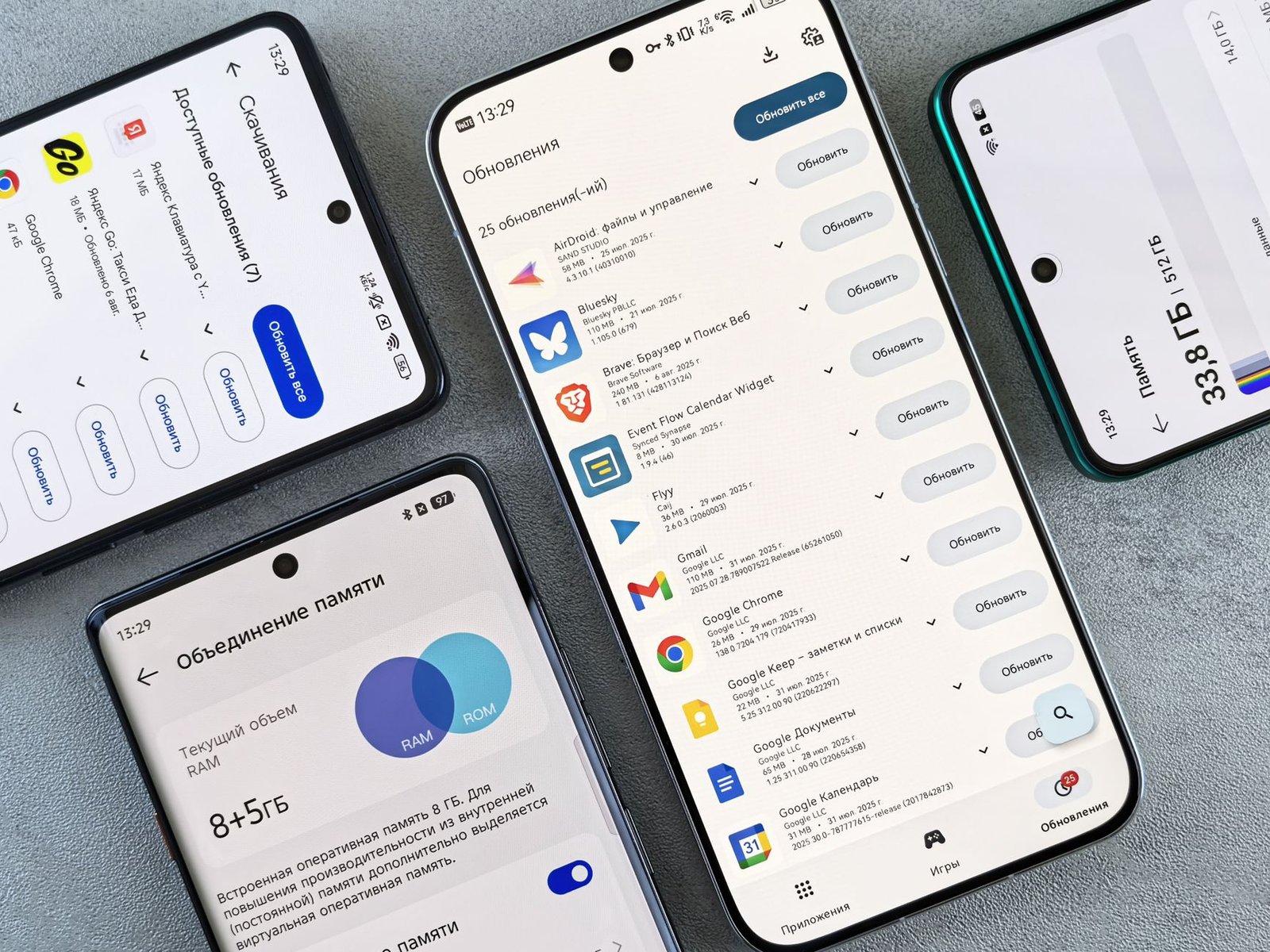
    App updates matter too. Outdated apps can leak memory or run inefficient code. Check Google Play Store > My Apps & Games > Updates and install everything pending.

    One Tool Worth Keeping: CCleaner (Used Correctly)

    If you want a single optimization app, CCleaner is the least-annoying option. It clears cache, junk files, and leftover app data without false promises.

    Use it monthly, not daily. Set a reminder. Then uninstall it. Leaving cleanup apps permanently installed defeats the purpose—they run background tasks themselves.

    Your Action Plan This Week

    Don’t overhaul everything at once. Pick three steps:

    • Open Files by Google and delete 2GB of junk.
    • Disable background activity for 5 apps you don’t need notifications from.
    • Lower animation scales in Developer Options.

    Restart your phone after changes. The difference will be immediate. Speed optimization isn’t a one-time fix—it’s a habit. Revisit your app list every two months, keep storage under 80% full, and your Android device will stay responsive for years.

  • Best Note-Taking Apps to Organize Your Ideas Efficiently

    Best Note-Taking Apps to Organize Your Ideas Efficiently

    Why the Right Note-Taking App Matters

    Your brain isn’t a hard drive. It’s built to think, create, and connect ideas—not to store everything. The moment you try to hold too many thoughts in your head, productivity tanks. A solid note-taking app does one thing well: it gets your ideas out of your skull and into a system you can actually trust.

    But here’s the catch: not every app works for everyone. Some people need dead-simple markdown files. Others need nested hierarchies, tags, and cross-links. This guide covers real tools that people actually use, not theoretical solutions.

    Obsidian: For Builders Who Want Control

    Obsidian is designed around the idea that your notes should be yours. Everything lives in plain text markdown files on your computer. You own the data completely. No syncing to corporate servers, no vendor lock-in.

    What makes it powerful is the graph view—visualize how your notes connect to each other. If you’re researching a topic or building a knowledge base, you see relationships between ideas instantly. Backlinks mean you can reference one note from another, and Obsidian shows you what’s connected.

    • Works offline entirely
    • Cross-platform (Windows, Mac, Linux)
    • Huge plugin ecosystem if you want extra features
    • Free for personal use; paid sync option available

    The learning curve exists, but if you’re the type who likes to tinker and customize your workflow, Obsidian rewards that investment.

    Notion: The All-in-One Workspace

    Notion isn’t just notes—it’s a database, wiki, and project manager rolled into one. You build pages with blocks: text, images, databases, kanban boards, calendars, toggles, whatever you need.

    For someone drowning in scattered tools (notes here, tasks there, databases somewhere else), Notion consolidates everything. One workspace for notes, project tracking, habit logging, even personal CRM if you want.

    • Collaborative—share pages and edit together in real time
    • Template gallery saves setup time
    • Works on web, iOS, Android, Mac, Windows
    • Free tier includes most features; paid plans unlock more

    The trade-off: Notion can feel slow on older devices, and there’s a learning curve with database relations. But for teams or anyone who needs flexibility, it’s worth it.

    Apple Notes: If You’re Already in the Ecosystem

    Don’t sleep on Apple Notes if you use iPhone, iPad, or Mac. It’s genuinely good now. Native syncing via iCloud is seamless, the interface is clean, and it does the basics without friction.

    You can add checklists, images, sketches, scanned documents, and hyperlinks. It’s collaborative too—share folders with others and work together. For someone who just wants fast, reliable note-taking without complexity, Apple Notes is underrated.

    The catch: you’re locked into Apple devices, and advanced features like linking between notes or complex organization are limited compared to Obsidian or Notion.

    Microsoft OneNote: For Windows and Office Users

    If your workflow already includes Word, Excel, and Outlook, OneNote integrates smoothly. It organizes notes into notebooks and sections, making hierarchy intuitive. Built-in collaboration works well, and it syncs across devices.

    Free version is solid; better features unlock with Microsoft 365 subscription. Search is powerful—text inside images is searchable too.

    OneNote shines when you’re already living in the Microsoft ecosystem, but it feels clunky compared to modern alternatives if you’re not.

    Evernote: The OG, Still Solid

    Evernote has been around since 2000 for good reason. It’s stable, reliable, and handles mixed content well—text, images, audio, web clips. Tagging system is flexible.

    Recent redesigns have made it faster and cleaner. Pricing changed—free tier is more limited now, but premium is reasonable if you use it daily.

    • Excellent for clipping web content
    • Strong search across all notes
    • Works everywhere (web, mobile, desktop)

    It’s not trendy anymore, but that’s partly because it does what it promises without drama.

    Logseq: Open-Source and Privacy-First

    Logseq is built on the same principles as Obsidian—your data stays local—but uses a bullet-point journal approach. Each day gets a page, and you build from there. Links and backlinks work the same way, showing connections visually.

    It’s free, open-source, and actively developed. If you like daily journaling mixed with knowledge building, Logseq’s workflow clicks faster than Obsidian.

    The community is smaller, so fewer templates and integrations, but the core tool is solid.

    How to Choose

    Start by asking: what problem are you solving?

    • Quick capture on the go: Apple Notes or Evernote
    • Building a personal knowledge base: Obsidian or Logseq
    • Team collaboration and project tracking: Notion
    • Microsoft ecosystem: OneNote
    • Simplicity and reliability: Apple Notes or Evernote

    Most people benefit from trying two or three. Spend a week with each before committing. Your perfect app depends on your habits, devices, and how much structure you need.

    The best note-taking app isn’t the fanciest one—it’s the one you’ll actually use consistently. Pick something that feels natural to your brain, not the other way around.

  • Lightweight Apps That Won’t Kill Your Phone Battery

    Lightweight Apps That Won’t Kill Your Phone Battery

    Why Your Battery Drains Faster Than You’d Like

    Your phone feels sluggish by mid-afternoon. The battery percentage drops faster than it should. You’re not imagining it—bloated apps are the culprit. Most mainstream applications come loaded with background processes, constant connectivity, analytics trackers, and ads that silently chew through your battery life.

    The good news? There’s an entire ecosystem of lightweight alternatives designed to do the job without the unnecessary overhead. These apps run leaner, update less frequently in the background, and respect your device’s resources. If you’re tired of charging your phone multiple times a day, switching to lightweight apps is one of the most practical moves you can make.

    Messaging and Communication Apps

    Signal is the gold standard for battery-conscious messaging. Unlike WhatsApp or Telegram, which constantly sync in the background, Signal keeps its footprint minimal while offering end-to-end encryption as standard. It uses less RAM and runs efficiently even on older Android devices.

    For pure simplicity, Jami (formerly GNU Ring) is decentralized and battery-friendly. No servers constantly pinging your phone, no background syncing overhead. You get privacy and efficiency in one package.

    Social Media and News Alternatives

    The official Facebook and Twitter apps are notorious battery drains. They track everything and update constantly. Instead, try:

    • Nitter (Twitter/X alternative)—a lightweight web frontend that strips ads and trackers. Access it through your browser or use third-party clients like Tweetbot.
    • Fritter—a minimal Twitter client for Android that prioritizes battery efficiency and gives you control over refresh rates.
    • Feedly—for news consumption, it’s far more efficient than opening multiple news apps. One app, organized feeds, minimal background activity.

    Maps and Navigation

    Google Maps is powerful but power-hungry. OsmAnd+ is the lightweight champion here. It downloads offline maps, doesn’t require constant internet, and uses GPS more efficiently. Once maps are cached locally, you’re not streaming data or broadcasting your location constantly.

    Maps.me is another solid choice—offline-first, fast, and clean interface. Perfect for navigation without draining your battery during long trips.

    File Management and Storage

    Don’t use your phone’s pre-installed file manager? The third-party heavy hitters like Solid Explorer or Total Commander are feature-rich but heavy. Switch to Material Files or Simple File Manager—both open-source, tiny install sizes, and they do the job without background processes running.

    Media Players and Music

    VLC is the obvious choice—it handles almost any format without demanding resources. But if you want even lighter, mpv (available through Termux on Android) strips everything down to pure playback efficiency.

    For music specifically, Phonograph or Simple Music Player beat streaming apps like Spotify in terms of battery drain. Yes, you need local files, but the trade-off is worth it if battery life is your priority.

    Email Clients

    Gmail’s official app syncs aggressively. K-9 Mail gives you control—set your own sync intervals, disable background refresh, keep only essential notifications. It’s open-source and respects your battery.

    FairEmail is newer but excellent: you choose exactly when it syncs, supports unlimited accounts, and uses minimal resources.

    Browsers That Don’t Drain Battery

    Bromite is a Chromium-based browser stripped of Google’s tracking and unnecessary features. It’s faster and lighter than Chrome or Edge on Android.

    Firefox Focus is Mozilla’s minimal browser—auto-delete cookies and tracking data, lightweight, and battery-conscious.

    System-Level Optimization Tips

    Switching apps helps, but habits matter too:

    • Disable background app refresh in Settings > Apps. Let apps update only when you open them.
    • Turn off location services for apps that don’t strictly need it. Your maps app? Yes. Social media? No.
    • Lower screen brightness or enable adaptive brightness—your display uses more power than any app.
    • Use battery saver mode early, not as a last resort. Modern Android versions are smart about it.
    • Check Settings > Battery to see what’s running. If an app uses 10%+ when you’re not actively using it, uninstall or replace it.

    Independent Games That Won’t Drain You

    Casual indie games can be surprisingly efficient. Threes!, Two Dots, and Mini Metro are proof that fun doesn’t require a graphics-heavy engine. They’re lightweight, no ads (or minimal ones), and designed for short play sessions—exactly what your battery appreciates.

    The Bottom Line

    Battery drain isn’t inevitable. Every app you use has alternatives, and most of them are free or cheap. Start by identifying your three most-used apps—chances are, there’s a leaner version waiting. Replace them one at a time, and within a week, you’ll notice your phone lasting noticeably longer.

    The real win? You get better privacy, fewer ads, and faster performance as bonus features. Download K-9 Mail this week if you use email regularly—you’ll feel the battery improvement immediately.

  • How to Back Up Your Android Phone Data: Complete Guide

    Why Android Backup Matters

    Your Android phone holds everything: photos of important moments, contacts you’ve built over years, app data, messages, and settings tuned exactly how you like them. Lose your device or hit a software glitch, and all of it vanishes without a backup strategy in place. The good news? Backing up Android is straightforward once you know your options.

    This guide walks you through the real methods that work, without wasting your time on vague theory.

    Built-In Google Account Backup

    Your first line of defense is already there. Every Android phone synced to a Google Account automatically backs up certain data—contacts, calendar events, Gmail, app settings, and device preferences—to Google’s servers.

    How to Check and Enable Google Backup

    • Open SettingsSystemBackup and restore (exact names vary by manufacturer and Android version)
    • Tap Backup or Google Account
    • Make sure your Google Account is selected
    • Toggle Backup my data to ON
    • Select what to back up: contacts, calendar, Gmail, SMS (if supported), app data

    The catch: this doesn’t back up your photos, videos, or your full internal storage. For those, you need another layer.

    Google Photos: The Photo and Video Safety Net

    Google Photos is the simplest way to ensure your media survives any disaster. It syncs to the cloud automatically and lets you recover files from any device.

    Setting Up Google Photos Backup

    • Download or open the Google Photos app (pre-installed on most Android phones)
    • Sign in with your Google Account
    • Tap your profile icon → Photos settings
    • Choose Backup and sync and toggle it ON
    • Select quality: Backup and sync (uploads everything) or Storage saver (compresses files to save space)
    • Choose to back up from « This folder only » or « All photos and videos »

    Google Photos gives you 15 GB free across all Google services. For unlimited storage, Google One subscriptions start at reasonable monthly rates. Photos back up continuously once enabled—no manual work needed.

    Local Backup: Your Computer Connection

    For maximum control and a physical copy, connect your Android to a Windows or Mac computer.

    Backup via Android File Transfer or ADB

    For casual users (easier method):

    • Download Android File Transfer (free, from Google)
    • Connect your Android via USB cable
    • Enable USB debugging in Developer Options if prompted (Settings → About → tap Build Number 7 times, then go back and open Developer Options)
    • On your computer, drag folders from your phone to a backup folder on your hard drive

    For power users (more thorough):

    • Install ADB (Android Debug Bridge) from Android SDK Platform Tools
    • Run: adb backup -apk -shared -all -f backup.ab
    • Confirm the backup on your phone screen
    • This backs up apps, their data, and media in one file

    Computer backups are free and give you ownership of your data, but they require manual triggers each time.

    Third-Party Apps for Advanced Backup

    If you want scheduled, automated backups beyond Google’s defaults:

    Popular Android Backup Apps

    • OneDrive (Microsoft): syncs photos and files to OneDrive; integrates with Windows machines
    • Dropbox: auto-uploads photos and selective folder syncing; 2 GB free tier
    • Samsung SmartThings Cloud (if you own a Samsung phone): backs up system settings, app lists, and more
    • Titanium Backup (requires root): granular app and data backup for advanced users

    Most aren’t required for typical use—Google’s tools cover 90% of people—but they’re useful if you prefer a different ecosystem or need extra redundancy.

    SMS and Call Logs

    Text messages and call history aren’t always covered by standard backups. Google’s backup system includes SMS on some phones, but to be safe:

    • Use Google Messages (Google’s default SMS app) which syncs conversations to your Google Account
    • Or install SMS Backup+, which backs up texts and call logs to Gmail automatically

    App Data and Settings

    Most modern apps (Gmail, WhatsApp, Instagram, banking apps) sync their own data to your account. But for apps that don’t:

    • Check each app’s settings for a « backup » or « export » option
    • Critical data—like passwords in a note-taking app—deserves a manual export to your computer

    Testing Your Backup

    A backup untested is a backup that might not work. Every six months:

    • Clear your Google Account from your phone (Settings → Accounts)
    • Re-add it and watch what restores automatically
    • Check Google Photos for all your media
    • Verify your most-used apps restored their data

    This takes 30 minutes and saves you from discovering a broken backup when you actually need it.

    Your Backup Action Plan

    Don’t back everything up three ways—it’s overkill and exhausting. Instead:

    • Day 1: Turn on Google Account backup and Google Photos sync right now
    • Optional: Also enable OneDrive or Dropbox if you prefer Microsoft or already use those services
    • Monthly: Connect your phone to your computer and drag important photos or documents to a folder as extra insurance
    • Quarterly: Test one backup method to confirm it works

    The most dangerous backup approach is thinking about it but never acting. Start with just Google Account and Google Photos today—that alone saves 95% of what matters. You can always layer more on later.

  • Best Offline Indie Games for Android – Play Anywhere

    Why Offline Indie Games Matter on Android

    Your Android phone is a powerful gaming device, but not every moment gives you reliable internet. Whether you’re on a commute, traveling, or simply want to preserve battery life, offline indie games solve a real problem. Unlike AAA titles that demand constant connectivity and hefty file sizes, indie games offer focused, creative experiences that work perfectly without a network connection.

    The indie gaming scene on Android has matured significantly. Small studios craft games with genuine personality, tight mechanics, and zero reliance on ads or pay-to-win mechanics. These aren’t dumbed-down mobile ports—they’re intentional designs built from the ground up for handheld play.

    Best Offline Indie Games You Should Download Now

    Into the Breach

    Into the Breach is a tactical turn-based game from Subset Games (the team behind FTL). You control a squad of mechs defending your grid-based island from alien bugs. Every move plays out predictably—you see enemy intentions before they act, making strategy the core mechanic, not luck. The Android version runs flawlessly offline, and the bite-sized missions fit perfectly into short breaks. No timers, no energy systems, no interruptions.

    Threes!

    Don’t confuse Threes! with the countless clones it inspired. The original puzzle game by Sirvo demands genuine thinking. You slide numbered tiles on a 4×4 grid, combining them strategically to reach higher numbers. It’s meditative, challenging, and utterly playable offline. Once downloaded, you’ll have hours of puzzle-solving without touching a server.

    Monument Valley 2

    Monument Valley 2, developed by ustwo, is an Escher-inspired puzzle game about a mother and child navigating impossible architecture. It’s brief—roughly 30 minutes—but every frame is hand-crafted artwork. The puzzles aren’t brutally hard; they’re about exploration and wonder. This is proof that indie games can be genuinely beautiful on mobile.

    Slay the Spire

    Slay the Spire, ported from PC by Mega Crit Games, is a deck-building roguelike that rewired how people think about card games. You build a unique deck run by run, balancing offense, defense, and synergy. Each playthrough is different, and the learning curve keeps you engaged for dozens of hours. It runs entirely offline once installed, making it perfect for sustained play without battery drain from constant connectivity.

    Downwell

    Downwell is a minimalist action game by Moppin where you fall endlessly down a well, shooting enemies to slow your descent. It’s one-button control with surprising depth—timing, positioning, and risk management matter. The retro pixel art and synth soundtrack create a complete world on a tiny screen. Pure, focused design.

    Mini Metro

    Mini Metro puts you in charge of designing subway systems in growing cities. You draw lines connecting stations as the city expands and demand grows. It’s relaxing but gradually more demanding, with no failure state—just you versus evolving complexity. The minimalist aesthetic means it runs butter-smooth offline on any device.

    Alto’s Adventure

    Alto’s Adventure is an endless runner that doesn’t feel like an endless runner. You’re snowboarding down procedurally-generated slopes, collecting items and performing tricks. The controls are intuitive, the visuals are serene, and there’s no pressure. It’s the anti-grind game—pure play without monetization hooks.

    What Makes These Games Different

    Good indie games share traits that matter for offline play:

    • No energy systems: Play as long as you want without waiting for timers to reset.
    • Intentional design: Every feature serves the core experience, not engagement metrics.
    • No ads: You pay once and own it. No surprise pop-ups burning your attention.
    • Small file sizes: Most fit under 100 MB, leaving room on your device.
    • Replayability: Whether through procedural generation, multiple solutions, or roguelike structure, they give you reasons to return.

    Where to Find These Games

    Download from Google Play Store directly, but also check itch.io, where indie developers often release Android versions. Some games like Slay the Spire are premium ($10), while others like Alto’s Adventure cost $2. The investment is genuinely worth it—you’re supporting small creators while getting DRM-free software you control completely.

    Pro Tip: Storage and Battery Efficiency

    Offline games are inherently efficient. Download them to your device, and they consume zero data. Unlike streaming games or always-online titles, they preserve your battery by eliminating constant network requests. If you’re serious about offline gaming, consider keeping a few titles installed rotates—you’ll always have engaging entertainment without the drain.

    Start with Slay the Spire or Into the Breach if you want deep, lasting gameplay. Pick Monument Valley 2 if you want something brief and visually stunning. Either way, you’re getting genuine quality that respects your time and device.

  • Smartphone Storage Full? Best Cleaning Apps to Free Up Space

    Why Your Phone Storage Fills Up So Fast

    Your smartphone’s storage doesn’t empty itself. Between cached app data, duplicate photos, old downloads, and temporary files, your device accumulates gigabytes of junk you don’t even know exists. The moment you hit that dreaded « Storage Full » warning, your phone slows down, apps crash, and you can’t install updates. Cleaning apps solve this problem by hunting down and removing what’s actually wasting your space—without deleting anything you need.

    What Storage Cleaners Actually Do

    A good cleaning app targets specific culprits: app cache files (temporary data apps store locally), duplicate photos, blurry screenshots you’ll never use again, old download files, and leftover files from uninstalled apps. Some also identify large files you’ve forgotten about. The best ones let you preview what they’re removing before hitting delete, so you stay in control.

    Cache vs. App Data: What’s Safe to Delete

    • App cache: Safe to delete anytime. Apps regenerate this data when you use them again.
    • App data: Contains your settings, logins, and progress. Only delete if you’re uninstalling the app.
    • Temporary files: Always safe. They’re meant to be temporary.
    • Duplicate and blurry photos: Safe if you’ve already backed them up to Google Photos or similar.

    Top Cleaning Apps Worth Your Time

    CCleaner

    CCleaner is the industry standard for a reason. It clears app cache, removes junk files, and identifies duplicate photos. The free version covers most needs; the paid version adds real-time monitoring and app uninstall tracking. It’s straightforward—no gimmicks, just effective cleaning. Available on Google Play Store for Android.

    Files by Google

    If you want something minimal and trusted, Files by Google is built by Google itself. It identifies large files, old downloads, and duplicate photos, then lets you delete them with one tap. The app also shows your storage breakdown so you see exactly what’s hogging space. Completely free, no ads.

    Avast Cleanup

    Avast Cleanup goes deeper into app optimization. Beyond cache clearing, it removes residual junk left by uninstalled apps and identifies rarely-used apps you might want to remove. The interface is clean, and the scanning process is fast. Free version is solid; premium adds automatic cleanup scheduling.

    SD Maid

    For power users who want granular control, SD Maid shows you exactly what’s taking up space and lets you decide what stays and what goes. It’s more technical than others but never deletes anything without confirmation. You’ll find it on Google Play under « SD Maid » (the SE version is the current recommended one).

    Smart Strategies Beyond Cleaning Apps

    Move Photos to the Cloud

    Your camera roll is usually the biggest space hog. Google Photos offers unlimited free storage with slightly compressed quality, or full quality if you have Google One storage. Amazon Photos also works well if you’re in their ecosystem. Once uploaded, delete the originals from your phone.

    Clean Your Downloads Folder

    Your Downloads folder accumulates PDFs, APKs, and documents you downloaded once and never touched again. Go through it manually every few weeks. Cleaning apps often flag this folder, but you should review what’s actually in there first.

    Uninstall Unused Apps

    An app taking 500MB but used once a month isn’t worth it. Check your App Library, sort by last used date, and remove the dead weight. This frees more space than cleaning the remaining apps.

    Clear Browser Cache Regularly

    Chrome, Firefox, and other browsers cache website data. Cleaning apps handle this, but you can also do it manually in your browser settings. It’s quick and often frees surprising amounts of space.

    Choosing the Right App for You

    If you want simplicity, start with Files by Google or CCleaner. If you need deep cleaning and don’t mind more options, try Avast Cleanup or SD Maid. All four are legitimate, regular app store residents with millions of downloads and solid ratings.

    Before installing any cleaner, check recent reviews on Google Play—bad cleaners sometimes slip through, and user reviews spot them fast. Avoid apps promising miraculous speed increases or claiming to « boost » performance beyond what storage cleanup actually does.

    The Maintenance Habit

    Don’t wait until your phone is gasping for space. Run a cleanup monthly. Most cleaners let you schedule automatic scans, so you barely think about it. A quick 5-minute clean every month prevents the panic of emergency deletion.

    One final tip: before using any cleaning app, enable automatic backup in Google Photos or your preferred cloud service. That safety net takes the stress out of deleting old files—you know your memories are safe even if you accidentally remove something important.

  • Best Free Productivity Apps for Android

    Why Your Android Phone Is a Productivity Machine (If You Pick the Right Apps)

    Most people treat their Android phones like consumption devices—scrolling, watching, endless notifications. But your phone is actually one of the most powerful productivity tools you own, if you load it with the right applications. The challenge isn’t finding apps; it’s finding ones that actually work without draining your battery, stealing your data, or burying you under ads.

    The good news? There are genuinely excellent free productivity apps available right now. Not freemium traps that nag you every thirty seconds. Real tools that work, no strings attached.

    Task Management and To-Do Lists

    Todoist (Free Version)

    Todoist’s free tier is surprisingly generous. You get basic task creation, project organization, and recurring tasks—all you need if you’re not managing complex workflows across a team. The interface is clean, syncing works reliably across devices, and it won’t beg you for a premium subscription every time you open it.

    Microsoft To Do

    If you’re already in the Microsoft ecosystem, To Do deserves a look. It integrates directly with Outlook tasks and Planner, making it useful if you work with Office apps. The free version includes list sharing, task details, and subtasks. No hidden limitations.

    Trello (Free Version)

    For more visual task management, Trello uses the kanban board approach—columns, cards, drag-and-drop simplicity. The free plan gives you unlimited cards, two boards to start, and enough flexibility for personal or small team projects. It’s intuitive enough that you’ll be organizing within minutes.

    Note-Taking and Knowledge Management

    Obsidian

    Obsidian is a markdown-based note app that stores everything locally on your device—no cloud sync nonsense, no data mining. You own your notes. The free version includes local vault storage, linking between notes, and community plugins. If you want to store and connect ideas, this is the real deal.

    Joplin

    Another open-source option, Joplin syncs across devices through your choice of cloud service (OneDrive, Dropbox, Nextcloud). It supports notebooks, tags, and markdown formatting. Completely free, no premium tier dangling above your head.

    Google Keep

    Sometimes you don’t need complexity. Keep does quick notes, checklists, and voice memos with instant syncing to your Google account. It’s lightweight and gets the job done without pretension.

    Calendar and Time Management

    Google Calendar

    Most Android users already have this installed. The free version handles multiple calendars, event reminders, and sharing. It integrates with Gmail and works across all your devices. No setup needed.

    Etar

    If you want an open-source alternative that doesn’t ping Google’s servers, Etar is a clean, lightweight calendar app. It syncs with CalDAV servers and local calendars. Minimal, functional, and privacy-conscious.

    File Management and Cloud Storage

    Google Drive

    Free users get 15GB of cloud storage shared across Drive, Gmail, and Photos. Perfect for document collaboration, spreadsheets, and backing up files. It works everywhere.

    Nextcloud (Self-Hosted)

    If you want full control, Nextcloud is open-source file sync software. It requires a server, but once set up, you get a personal cloud that no company controls. Steep learning curve, but zero data concerns.

    FTP Manager Apps (e.g., Solid Explorer with free version)

    Solid Explorer’s free version includes basic file browsing and FTP access. Useful if you need to work directly with server files or manage complex folder structures.

    Focus and Time Tracking

    Forest

    Forest gamifies focus sessions. Plant a virtual tree, keep your phone locked for the duration, and watch it grow. Stay off your phone, your tree survives. Open an app, it dies. The free version works completely—premium unlocks themes and tree variety, but the core mechanic is free.

    Toggl Track (Free Version)

    If you need to track where your time actually goes, Toggl Track records time spent on projects and tasks. The free plan includes basic tracking, reports, and project management. No limits on how long you can track.

    Communication and Collaboration

    Slack (Free Version)

    Slack’s free tier gets you basic messaging, channels, and file sharing. It only shows your last 90 messages in the free version, but for small teams or casual communication, it’s perfectly functional.

    Standard Notes

    For secure, encrypted note-taking with collaboration features, Standard Notes offers a free version. It’s privacy-first—even Standard Notes can’t read your notes.

    What Actually Matters When Choosing Productivity Apps

    • Does it work offline or require constant internet?
    • Will it sync reliably across your devices?
    • Does the free version give you core features or just a crippled demo?
    • Is your data stored locally, in the cloud, or both?
    • How aggressive are the ads or upsells?

    The Real Setup That Works

    Don’t download fifteen apps hoping one sticks. Start with three: a task manager (Todoist or Microsoft To Do), a note app (Obsidian or Joplin), and a calendar (Google Calendar or Etar). Use them for a week. Then add more only if you genuinely need them.

    The best productivity system isn’t the fanciest—it’s the one you’ll actually use. Pick apps with simple interfaces, reliable sync, and zero friction. Your Android phone already has the horsepower; the right free apps will unlock it.

  • How to Safely Download and Install APK Files on Android

    How to Safely Download and Install APK Files on Android

    What is an APK File?

    An APK (Android Package) file is the standard format used to distribute and install applications on Android devices. Think of it as the Android equivalent of an .exe file on Windows or a .dmg on Mac. APK files contain all the necessary code, resources, and permissions your app needs to run properly.

    While most users download apps directly from the Google Play Store, APK files offer an alternative way to install applications—whether you’re looking for indie games, beta versions, or apps not available in your region. However, installing APK files from outside official sources requires extra caution to keep your device secure.

    Why Download APK Files?

    There are legitimate reasons to install APK files directly:

    • Access indie games and small developer projects before they hit major app stores
    • Install beta versions of apps to test new features early
    • Download applications unavailable in your country’s Play Store
    • Use older versions of apps if newer versions don’t suit your needs
    • Install tools and utilities specifically designed for tech enthusiasts

    Despite these advantages, sideloading APK files carries more risk than using official app stores, so following security best practices is essential.

    Security Risks to Be Aware Of

    Before downloading any APK file, understand the potential dangers. Malicious actors sometimes distribute infected APK files that can steal personal data, compromise your device’s security, or even drain your battery. Unlike the Google Play Store, which scans apps for threats, unofficial sources have no built-in protection layer.

    The key to staying safe is being selective about where you download from and verifying the legitimacy of sources before installing anything.

    Step-by-Step Guide to Safe APK Installation

    1. Enable Installation from Unknown Sources

    By default, Android blocks installation of APK files from sources other than the Play Store. You’ll need to enable this permission:

    • Open Settings on your Android device
    • Navigate to Security or Privacy (location varies by device)
    • Look for Unknown Sources or Install Unknown Apps
    • Enable the option (you may need to grant permission to a specific app, like your file manager or browser)

    Important: Only enable this for the specific app you’ll use to install APKs, then disable it afterward for extra safety.

    2. Choose Trustworthy Download Sources

    Not all APK websites are created equal. Stick to reputable sources with strong reputations and active user communities. Look for sites that have been around for years, display transparent information about the apps they host, and have good user reviews. Developer websites are often the safest choice—many indie developers and small teams host their APK files directly.

    Avoid random links from social media, sketchy forums, or unverified sources. If something feels off, skip it.

    3. Scan Files Before Installation

    Before installing any APK file, use a mobile antivirus tool to scan it. Several free antivirus apps can scan APK files for known malware and suspicious behavior. This adds an important layer of protection between you and potential threats.

    4. Check App Permissions Carefully

    When installing an APK, Android displays the permissions the app requests. Review these carefully:

    • A simple game shouldn’t need access to your contacts or messages
    • A flashlight app shouldn’t request camera or microphone permissions
    • Be suspicious of apps requesting excessive or irrelevant permissions

    If an app’s permissions seem unusual or invasive, cancel the installation and look for an alternative.

    5. Install and Monitor

    Once you’ve verified the source, scanned the file, and reviewed permissions, proceed with installation. After installing, monitor the app’s behavior for a few days. If it drains your battery unusually fast, displays unwanted ads, or behaves strangely, uninstall it immediately.

    Best Practices for Safe APK Downloading

    • Verify checksums: Some developers provide file checksums to confirm you’ve downloaded the exact file they released
    • Use a file manager with security features: Some Android file managers include built-in scanning capabilities
    • Keep your OS updated: Regular Android updates patch security vulnerabilities
    • Consider a dedicated device: If downloading sensitive apps, use an older device you’re less concerned about
    • Disable Unknown Sources when done: Turn off this permission once you’ve finished installing APKs
    • Read user reviews: Check comments on download sites to see what other users experienced

    When to Avoid Downloading APK Files

    Some situations warrant caution or avoidance entirely. Don’t download APK files for apps that handle sensitive information like banking apps or password managers unless from the official developer’s website. Apps with frequent updates are also better installed through the Play Store, which handles automatic updates more safely.

    If an app is available on the official Google Play Store, that’s usually your safest bet, even if the APK download is faster or offers additional features.

    Conclusion

    Downloading and installing APK files isn’t inherently dangerous when you follow proper security practices. By enabling Unknown Sources only when needed, choosing trustworthy sources, scanning files before installation, and reviewing app permissions, you can safely explore indie games, beta apps, and specialized tools beyond the Google Play Store.

    The key is remaining vigilant and approaching each download with a healthy skepticism. Keep your device updated, stay informed about security practices, and trust your instincts—if something feels unsafe, it probably is.

  • Best Free Open-Source Alternatives to Paid Software

    Best Free Open-Source Alternatives to Paid Software

    Why Switch to Open-Source Software?

    Paid software can quickly drain your budget, especially if you’re juggling multiple subscriptions. Open-source alternatives offer a compelling solution: they’re free, transparent, and often just as powerful as their commercial counterparts. Whether you’re a developer, designer, student, or everyday user, switching to open-source software can save you thousands while maintaining professional-quality results.

    Beyond cost savings, open-source tools give you freedom. You can inspect the code, customize features, and contribute to the community. No vendor lock-in, no hidden tracking, and no sudden price increases. Let’s explore the best free alternatives that can replace your current paid subscriptions.

    Office & Productivity Tools

    LibreOffice (vs. Microsoft Office)

    LibreOffice is the gold standard for document creation and spreadsheets. It handles Word documents, Excel sheets, and PowerPoint presentations with impressive compatibility. The interface may feel slightly different from Microsoft Office, but the learning curve is minimal. It’s perfect for essays, business reports, data analysis, and presentations without the subscription fees.

    Want something even lighter? OnlyOffice is another excellent choice with a modern interface and real-time collaboration features.

    GNOME Calendar & Evolution (vs. Outlook/Google Calendar)

    Managing emails, contacts, and calendars doesn’t require expensive software. GNOME Calendar and Evolution provide reliable scheduling and email management across Linux, Windows, and macOS. They integrate well with various email providers and sync seamlessly across devices.

    Graphic Design & Creative Software

    GIMP (vs. Adobe Photoshop)

    GIMP (GNU Image Manipulation Program) is the heavyweight champion of free image editing. It supports layers, filters, color correction, and advanced retouching tools. While it’s not identical to Photoshop, it covers 90% of typical design tasks. For digital artists, photo editors, and designers on a budget, GIMP is indispensable.

    Inkscape (vs. Adobe Illustrator)

    Inkscape excels at vector graphics. Whether you’re creating logos, icons, or scalable illustrations, Inkscape provides professional-grade tools. The learning curve is steeper than some alternatives, but tutorials abound online. Your investment in learning pays off through unlimited free use.

    Blender (vs. Cinema 4D or 3DS Max)

    3D modeling and animation no longer require premium software. Blender is a complete 3D suite used by professionals in studios worldwide. It offers modeling, sculpting, animation, rendering, and video editing. The community is massive, making learning resources readily available.

    Development & Code Editors

    Visual Studio Code (vs. JetBrains IDEs)

    VS Code is completely free and lightweight. It supports virtually every programming language through extensions. Developers love its speed, extensive plugin ecosystem, and active community. Whether you’re coding in Python, JavaScript, or C++, VS Code handles it all without paying a dime.

    Git & GitHub (vs. Paid Repository Hosting)

    Version control doesn’t cost anything. Git is the standard for tracking code changes, and GitHub offers free public and private repositories. You get professional-grade collaboration tools without enterprise pricing.

    Video & Audio Production

    DaVinci Resolve (vs. Adobe Premiere Pro)

    DaVinci Resolve brings professional color grading, editing, and effects to the free tier. The full-featured version rivals paid alternatives. Video creators, YouTubers, and editors appreciate its powerful tools and smooth workflow. The free version alone is competitive with software costing thousands.

    Audacity (vs. Adobe Audition)

    Audio editing is simple with Audacity. Record, edit, and mix audio tracks for podcasts, music projects, or voice-overs. The interface is straightforward, and it handles most audio tasks efficiently.

    OBS Studio (vs. Paid Streaming Software)

    Streaming and screen recording have never been easier. OBS Studio is the industry standard for content creators, offering multi-source streaming, scene management, and advanced encoding options. Gamers, educators, and streamers rely on it for quality broadcasts.

    Productivity & Organization

    Joplin (vs. Evernote or OneNote)

    Note-taking and organization work beautifully in Joplin. It syncs across devices, supports markdown formatting, and encrypts sensitive information. Your data stays yours, not stored on corporate servers. Perfect for students, researchers, and anyone managing scattered notes.

    Nextcloud (vs. Dropbox or OneDrive)

    Cloud storage and file sync don’t require commercial services. Nextcloud lets you host your own cloud infrastructure. You control your files completely, with privacy and security built-in.

    Mobile Apps for Android

    The open-source ecosystem extends to Android. Consider alternatives like:

    • NewPipe – YouTube without ads or tracking
    • Fennec – Privacy-focused Firefox fork
    • K-9 Mail – Lightweight email client
    • Syncthing – File synchronization across devices
    • LibreTorrent – Torrent client that respects your privacy

    Getting Started with Open-Source

    Transitioning to open-source takes minimal effort. Most tools are cross-platform, available for Windows, macOS, and Linux. Download from official websites, follow setup instructions, and explore tutorials. The learning curve varies, but communities are helpful and documentation is extensive.

    Start with one or two tools that replace your most-used paid software. Once you’re comfortable, expand your open-source toolkit gradually.

    Final Thoughts

    Open-source software proves that quality doesn’t require expensive licenses. These alternatives deliver professional results without the financial burden. Whether you’re a creative professional, developer, student, or casual user, there’s an open-source solution waiting for you. Give them a try—you’ve got nothing to lose and plenty to gain.

  • A Beginner’s Guide to Making Your First Mobile Game

    A Beginner’s Guide to Making Your First Mobile Game

    Why Mobile Game Development is More Accessible Than Ever

    Making a mobile game used to require specialized knowledge and expensive tools. Today, the barrier to entry has dropped dramatically. Whether you’re interested in creating a simple puzzle game or a casual adventure, the resources and platforms available to beginners are better than ever before.

    The mobile gaming industry continues to grow, with millions of players downloading new games every day. If you’ve ever thought about creating your own game, now is genuinely the right time to start. You don’t need a team of developers or a large budget—just curiosity, patience, and the right approach.

    Choose the Right Game Engine

    Your first decision is selecting a game engine. This is the software foundation that handles graphics, physics, sound, and gameplay mechanics. For beginners, two engines dominate the landscape:

    • Unity – widely used, supports both Android and iOS, has an enormous community, and offers free tiers for individuals and small studios.
    • Unreal Engine – more powerful but steeper learning curve; ideal if you’re planning larger projects down the road.

    For your first project, Unity is typically the better choice. Its beginner-friendly interface and massive library of tutorials make the learning process smoother. Unreal can wait until you’ve built some confidence.

    Start Small and Keep It Simple

    The biggest mistake beginners make is aiming too high. Your first game shouldn’t be a multiplayer RPG with cinematic graphics. Instead, focus on small, single-feature games that you can actually finish.

    Good starter project ideas include:

    • A simple tap-based game (tap the screen to jump, avoid obstacles)
    • A basic puzzle game (match tiles, solve logic challenges)
    • A casual runner (endless scrolling with increasing difficulty)
    • A turn-based strategy game (play against basic AI)

    The goal of your first project isn’t to create a masterpiece—it’s to learn the complete development cycle and actually ship something playable.

    Learn the Fundamentals First

    Before diving into your game engine, invest time in understanding core concepts. You don’t need to be a programmer, but basic knowledge helps tremendously.

    Focus on these fundamentals:

    • Game loops – how games update and render continuously
    • Input handling – responding to player touches and interactions
    • Collision detection – understanding when objects touch on screen
    • Game states – managing menus, gameplay, and end screens
    • Basic scripting – writing simple code to control game behavior

    YouTube tutorials and online courses cover these topics in depth. Spend a week learning before you start your actual project—this upfront investment saves frustration later.

    Assets: Graphics, Sound, and Music

    You don’t need to be an artist. Many free and affordable resources provide game assets (graphics, sound effects, music) that beginners can use legally.

    Where to find assets:

    • Free sprite libraries – websites offering pixel art and 2D graphics for games
    • Stock sound effects – royalty-free audio clips for gameplay and UI sounds
    • Royalty-free music – background tracks licensed for indie games
    • AI art tools – generate custom graphics if you want unique assets

    Always verify the license before using any asset. Most quality resources are either free with attribution or sold affordably. Using licensed assets saves months of work and keeps you legal.

    Build, Test, and Iterate

    Once you’ve started development, establish a rhythm: build features, test them frequently, and refine based on what works. Don’t wait until you’re finished to test—test constantly.

    This approach reveals problems early when they’re easier to fix. You’ll also develop a feel for what makes gameplay actually fun, rather than just what seemed fun in theory.

    During testing, pay attention to:

    • Is the difficulty balanced and engaging?
    • Are controls responsive and intuitive?
    • Does the game run smoothly without lag?
    • Do players understand how to play without instructions?

    Publishing Your Game

    When your game is polished enough, it’s time to publish. Android and iOS have different processes, but both are straightforward for beginners.

    For Android, you’ll submit to the Google Play Store. For iOS, you’ll use the App Store. Both require:

    • A developer account (small annual fee)
    • App icons and screenshots
    • A description and privacy policy
    • Final testing to ensure everything works

    Publishing isn’t the end—it’s the beginning. Be prepared to update your game, fix bugs, and respond to player feedback.

    Resources to Keep You Moving Forward

    The mobile game development community is generous with free knowledge. YouTube channels dedicated to game development, online communities like Reddit’s gamedev forums, and official documentation from engines like Unity provide endless learning opportunities.

    Join communities with other developers. Sharing your work, asking questions, and getting feedback accelerates your learning and keeps you motivated.

    Final Thoughts

    Making your first mobile game is an achievable goal. The tools are free or affordable, the learning resources are abundant, and the community is welcoming. Start simple, stay consistent, and finish what you start. Your first game might not be perfect, but it will be yours—and that experience is invaluable for everything you create next.

  • Best Lightweight Game Engines for Indie Developers in 2024

    Best Lightweight Game Engines for Indie Developers in 2024

    Why Lightweight Game Engines Matter for Indie Developers

    If you’re an indie developer with a limited budget and no army of programmers behind you, choosing the right game engine can make or break your project. Heavy engines like Unreal Engine 5 demand serious hardware, long learning curves, and patience. Lightweight alternatives let you focus on what matters: your game’s unique idea.

    A lightweight engine means faster iteration, smaller file sizes, easier deployment to mobile devices, and lower barriers to entry. You’ll spend less time wrestling with bloated tools and more time actually building. Let’s cut through the noise and look at real options that indie developers actually use.

    Godot: The Rising Star

    Godot has become the go-to choice for indie developers who want complete creative control without corporate strings attached. It’s open-source, free, and runs smoothly even on modest hardware.

    What makes Godot special is its lightweight footprint. A basic Godot game executable can be just a few megabytes. The engine uses its own scripting language, GDScript, which feels natural and readable. If you prefer C#, that’s supported too. The node-based architecture makes organizing game logic intuitive, especially for 2D projects.

    • Export to Windows, macOS, Linux, iOS, Android, and HTML5
    • Built-in 2D and 3D rendering
    • Active community with tons of free tutorials
    • Zero licensing fees or revenue sharing

    Games like Dredge and Blasphemous 2 shipped with Godot. That alone tells you it’s production-ready.

    LibGDX: Perfect for Java Developers

    If you’re comfortable with Java, LibGDX is a rock-solid framework for 2D games. It’s not a visual engine like Godot—you’ll write code to build everything—but that’s exactly why experienced developers love it.

    LibGDX compiles to desktop (Windows, macOS, Linux) and Android without friction. The framework is lean, fast, and gives you direct access to graphics APIs. You won’t find unnecessary overhead slowing you down.

    • Cross-platform from a single codebase
    • Minimal dependencies and memory usage
    • Strong community and mature documentation
    • Proven in production by hundreds of indie titles

    The learning curve is steeper than visual editors, but if you already know Java, you’ll be productive quickly.

    Pygame: Python for 2D Games

    Python is beginner-friendly, and Pygame proves you don’t need a fancy engine to make fun games. It’s a collection of Python modules built on SDL (Simple DirectMedia Layer), giving you direct control over graphics, sound, and input.

    Pygame games are tiny. You can create a complete 2D game that’s just a few hundred kilobytes. It’s ideal for prototyping, game jams, and learning game development fundamentals.

    • Extremely gentle learning curve
    • Perfect for 2D pixel art and retro-style games
    • Active community with endless tutorials
    • Runs on any system with Python installed

    The trade-off: Pygame won’t scale to large 3D projects. But for 2D, it’s unbeatable for solo developers.

    Raylib: Minimalist C/C++ Framework

    Raylib is a refreshingly simple framework for game development in C or C++. The philosophy is clear: do one thing well and stay out of the way.

    With just a few functions, you can initialize graphics, handle input, and render sprites. Raylib handles the boilerplate and gives you the rest. It’s extraordinarily portable and lightweight—ideal if you want low-level control without excessive complexity.

    • Works on Windows, Linux, macOS, Web, and Android
    • Minimal API—easy to learn, hard to outgrow
    • Excellent documentation with practical examples
    • Pure C library, highly portable

    Raylib is growing in popularity among developers who appreciate minimalism and performance. It’s particularly strong for 2D games and game jam entries.

    Raylib vs. SFML

    SFML (Simple and Fast Multimedia Library) is another C++ option worth mentioning. Both are lightweight, but Raylib feels more game-focused while SFML is more general-purpose. For games, Raylib’s slightly higher-level design gives you less friction.

    Defold: Mobile First, but Lean

    Defold, maintained by King (the mobile gaming giant), is purpose-built for 2D games on mobile and web. It uses Lua for scripting, which is lightweight and fast.

    The editor is browser-based, so you don’t install anything massive. Games compile to small binaries optimized for mobile distribution. Defold excels at releasing quickly to iOS and Android without unnecessary overhead.

    • Built-in mobile optimization
    • Hot-reload during development
    • Built on Lua, known for performance
    • Free to use with optional paid features

    If your target is primarily mobile, Defold deserves serious consideration.

    Choosing the Right Engine for Your Project

    Here’s a practical decision framework:

    • Want visual editing and quick prototyping? Start with Godot.
    • Comfortable with code, want maximum performance? Try Raylib or LibGDX.
    • Learning game development from scratch? Pygame is your friend.
    • Shipping to mobile first? Consider Defold.
    • Already invested in Java? LibGDX pays dividends.

    Don’t overthink this. Pick one, build something small, and iterate. Switching engines is less painful than staying trapped in one you hate.

    Final Thought: Start Small, Ship Faster

    The best engine for your next game is the one that removes obstacles between your idea and a playable build. Lightweight engines force you to be intentional about every feature. That discipline often leads to better, tighter games than sprawling triple-A tools ever could. Download one today and start building.